.
I have an account here. Now what?
When your account details are sent to you, you now have to ability to login to this portal and see any invoices that have been created for your account. If you login to the site before an invoice has been created, then there will really nothing to see beyond previous transactions.
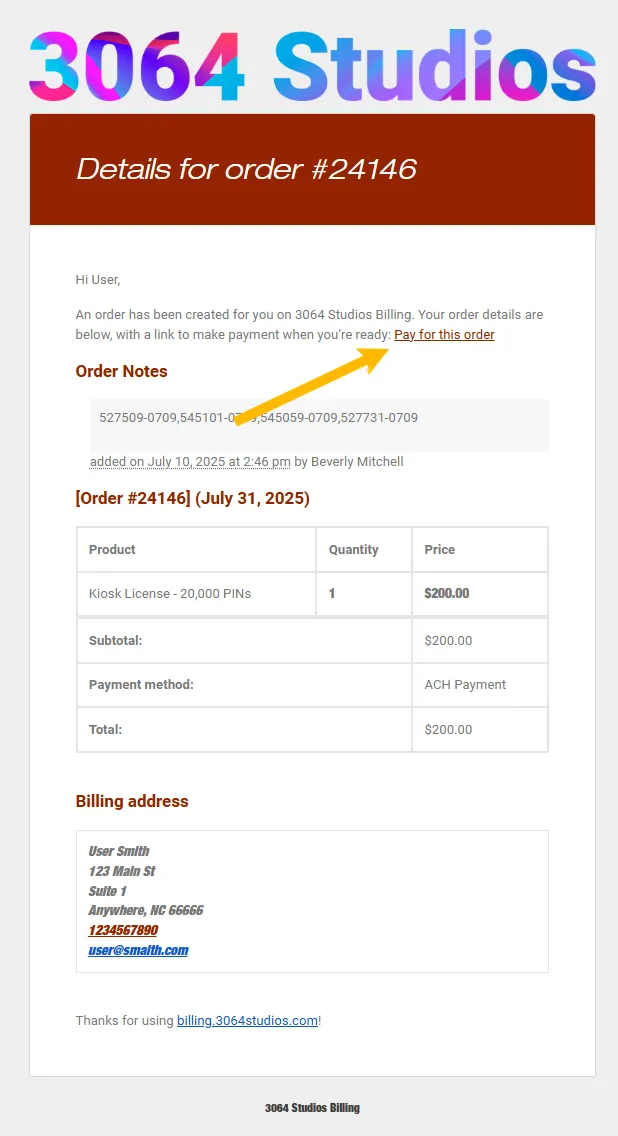
We send out invoice notifications via email, and will look like the screenshot here.
In order to process an invoice, click the red ‘Pay for this order’ link near the top of the email.
Note:
If you are paying by credit card you will be able to process the transaction just like any ecommerce transaction. Please keep in mind that card based transactions also include an additional fee to cover Merchant Provider Costs (the cost that is assumed to perform any CC transaction).
Setting up ACH
The first time that you go to pay an invoice using the ACH (Automated Clearing House) method, you will need to verify your bank account information with this system. This is done by two small ‘test deposits’ being performed on your account, then then the amounts validated by you.
To get started: From your My Account view go to Orders and Select Pay for the invoice entry. There are now two options to linking your bank account
1. Use the search function to find your bank, login, and give permissions direct payments to be made. If your bank is not part of the connection system, you can manually enter the details by clicking the blue “Enter bank details manually instead” link.
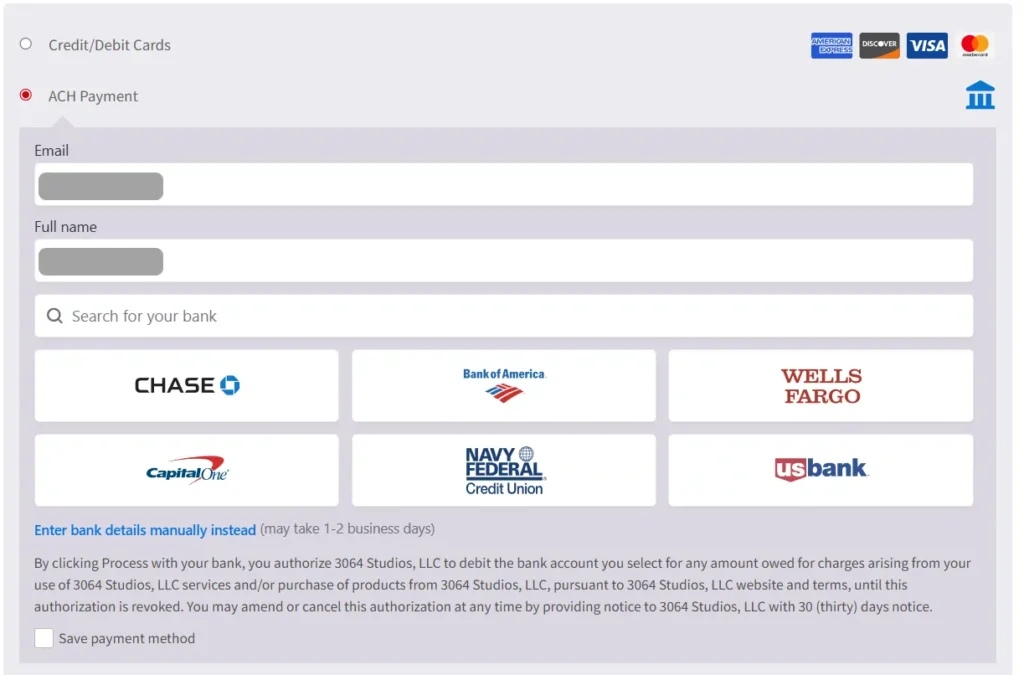 2. Manually enter your bank details (name, address, routing number, account number).
- Within 1-2 days, there will be two small deposits, usually less than one dollar made to your account.
- When those appear, log back into your account and enter the two deposit values.
- if they are correct, then your account will now be authorized to make payments directly, fee-free.
This only ever needs to happen once per account, and when you receive invoices in the future you can process these with one click.